CSV Import for Bulk Uploads
Pre-plan your content in a spreadsheet and auto-fill captions, titles, descriptions, tags, and first comments for each video during bulk uploads.
How It Works
- 1.Enable the feature — Go to Settings and turn on "CSV Import for Bulk Uploads" under Advanced Settings.
- 2.Upload multiple videos — Start a bulk upload with 2 or more videos.
- 3.Download the template — On the caption step, click "Download template". The CSV will be pre-filled with your uploaded filenames and any existing metadata, so you can edit rather than type from scratch.
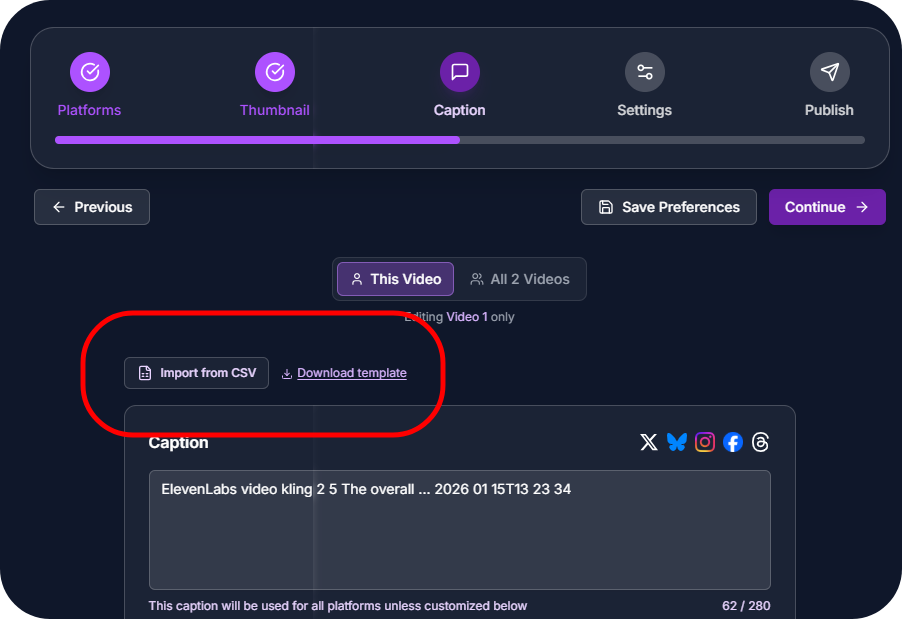
- 4.Fill in your metadata for each video
- 5.Import the CSV — Click "Import from CSV", verify the column mapping, check the preview, and click Apply.
Try It Out
Download an example CSV template to see the expected format. During bulk uploads, the template will be pre-filled with your actual filenames and existing metadata.
Supported Fields
| CSV Column | Maps To | Platforms |
|---|---|---|
| filename | Match key (pairs CSV rows with uploaded files) | All |
| caption | Video caption | TikTok, Instagram, Snapchat, Facebook, X, Threads, Bluesky |
| title | Video title | YouTube, Facebook |
| description | Video description | YouTube, Facebook |
| tags | YouTube tags (comma-separated) | YouTube |
| first_comment | First comment | All (where supported) |
Tips
- •The template only includes columns relevant to your connected platforms. No YouTube? No tags/title/description columns.
- •If your captions contain commas, the CSV handles this automatically with quoting — just edit normally in your spreadsheet app.
- •Filenames are matched flexibly: exact match, case-insensitive, and without file extensions (e.g. "my_video" matches "my_video.mp4").
- •Empty CSV cells are skipped — they won't overwrite existing metadata.