Image & Text Posts
ShortSync isn't just for videos. You can also post images and text-only content across all supported platforms.
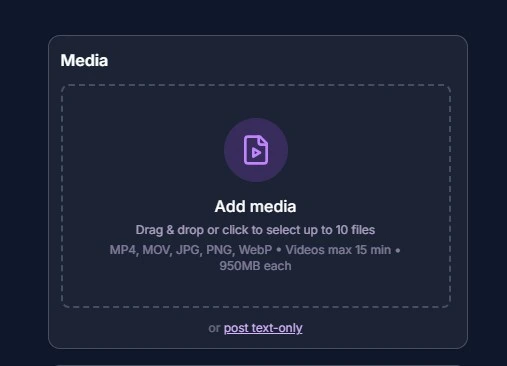
The media picker with the "post text-only" option
How to Create a Text Post
Open the upload page
Go to your dashboard and click the Upload tab.
Click "post text-only"
Below the media drop zone, you'll see a small "post text-only" link. Click it to switch to text mode.
Select your platforms
Only platforms that support text posts will be available. Platforms like YouTube and TikTok will be automatically disabled.
Write your caption and publish
Write your text, customize per-platform captions if needed, and publish immediately or schedule for later.
Tip: You can switch back to media mode at any time by clicking "upload media" in the sidebar. Your previously selected platforms will be restored.
How to Create an Image Post
Drag and drop or select an image file
Use the media drop zone just like you would for a video, but select an image file instead (JPG, PNG, or WebP).
Select your platforms
ShortSync will automatically show only platforms that support image posts. Video-only platforms will be disabled.
Add your caption and publish
Write your caption, adjust platform-specific settings, and publish or schedule your image post.
Platform Support
| Platform | Video | Image | Text |
|---|---|---|---|
| X (Twitter) | Yes | Yes | Yes |
| Bluesky | Yes | Yes | Yes |
| Threads | Yes | Yes | Yes |
| Yes | Yes | Yes | |
| Yes | Yes | No | |
| YouTube | Yes | No | No |
| TikTok | Yes | No | No |
| Snapchat | Yes | No | No |